Connect a Digital Parcel Scale

Connect a Digital Parcel Scale

Purchase Label Dashboard
  1. From the Label menu, select Purchase Label.

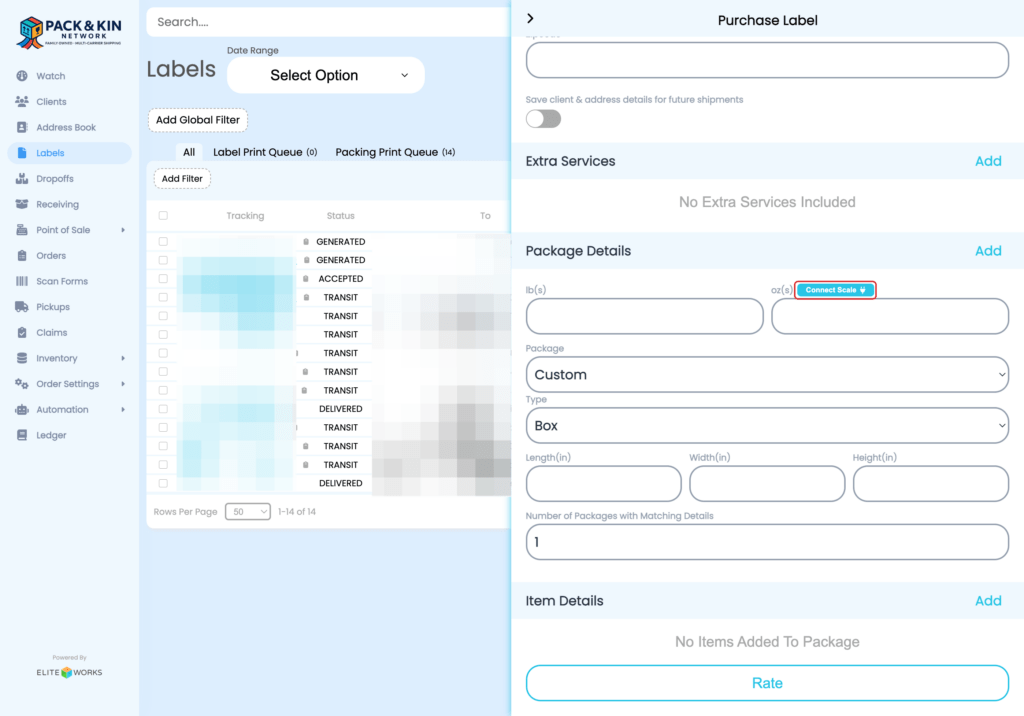
2. In the window on the right-hand side, select the Connect Scale button.
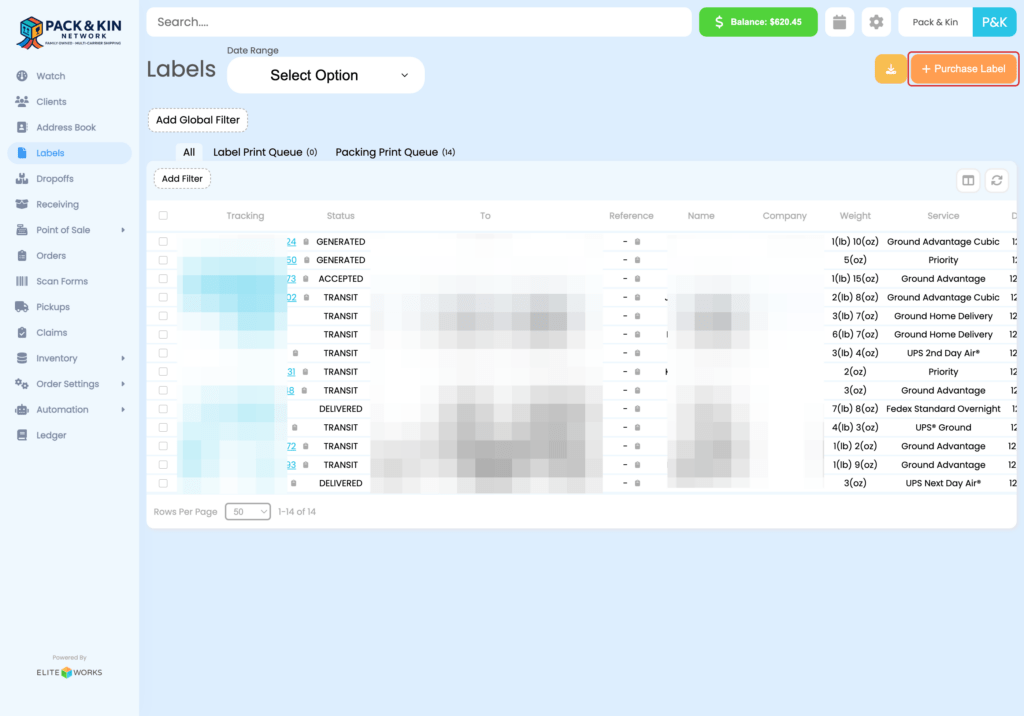
Pack and Kin Software Purchase Label Interface Screen.
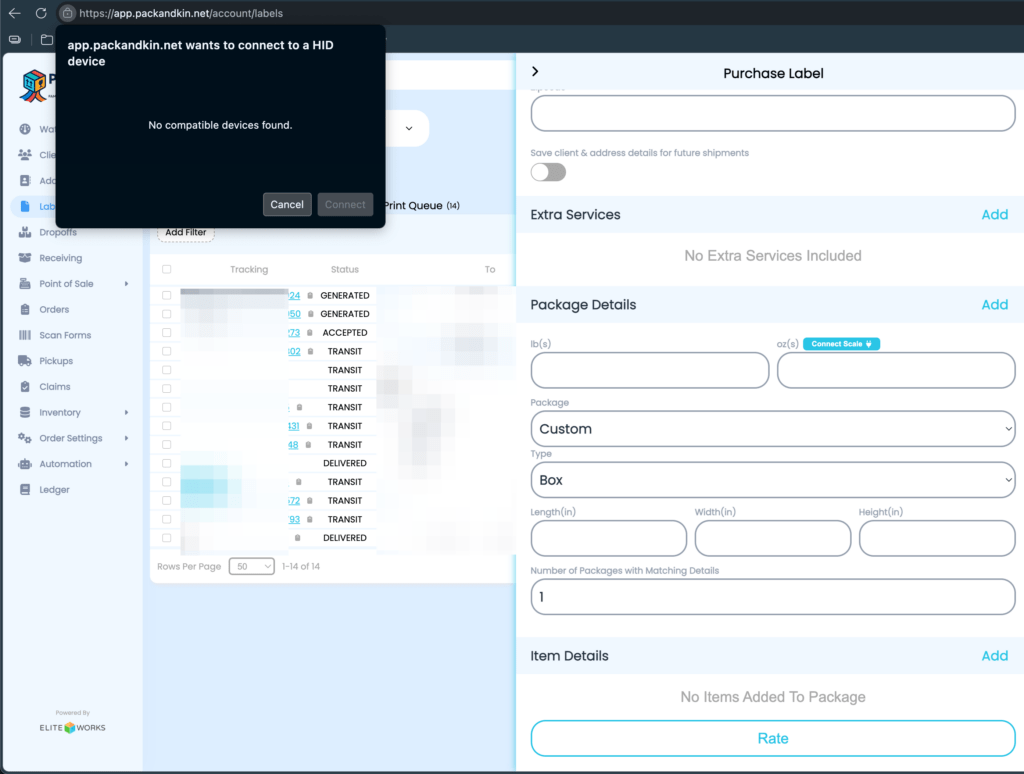
Connecting a Scale system interface for printer selection.

    • Related Articles

    • Add Funds to Digital Wallet

      Select the balance button at the top of the Pack & Kin window. 2. Enter an amount into the designated field, then select Add Payment. This will charge the default card stored in your digital wallet.
    • First Time Setup and Customizations

      When setting up the Pack and Kin software for the first time, it is recommended that users perform the following functions to ensure that their accounts can accurately accept payment for shipments, set competitive pricing, and have access to the ...
    • Create Certified or Registered Class Letters

      Under the Labels menu, select Purchase Label. 2. Select a pre-saved client or enter the client information into the designated fields. When adding a new client, ensure the following fields are filled with the customer’s information for the person who ...
    • Purchase A Label

      Select Custom Address from the From Address field. 2. Enter the information for the customer standing in front of you into the following fields: A. Name of the individual or Company sending the item B. Email or Phone of the customer for post shipment ...
    • Enable Payment Auto-Refill

      Select the settings gear in the top-right corner of the screen. 2. Select Auto Refill towards the center of the window. 3. On the window that appears on the right-hand side, select your payment threshold for when money should automatically be ...