Enable Payment Auto-Refill
Enable Payment Auto-Refill

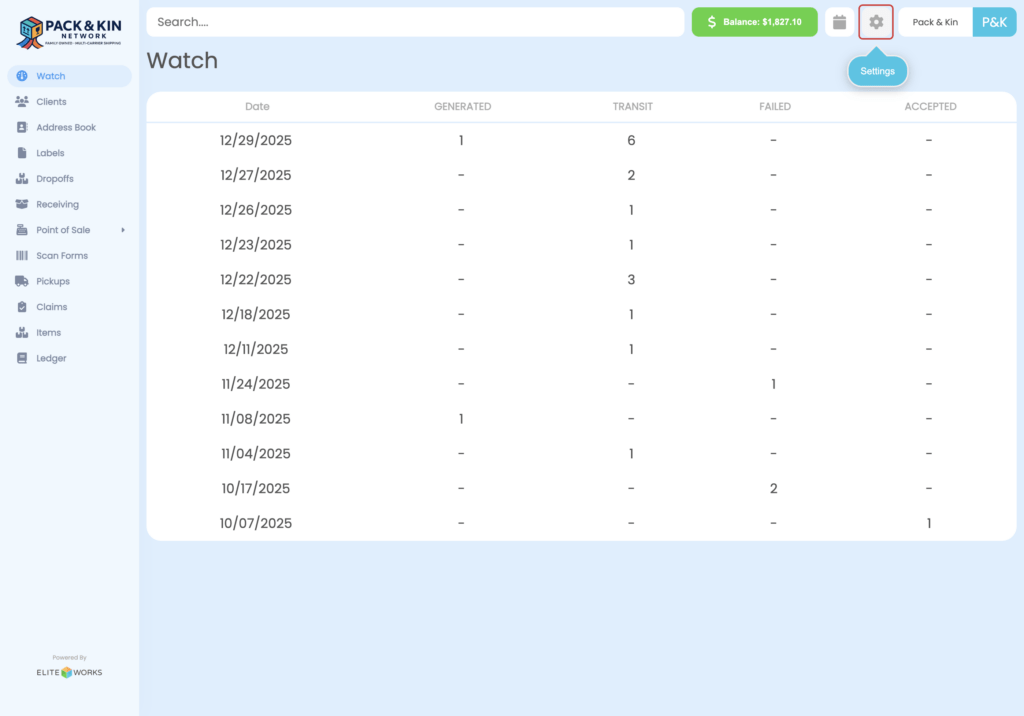
Pack & Kin Homepage Dashboard
  1. Select the settings gear in the top-right corner of the screen.

2. Select Auto Refill towards the center of the window.
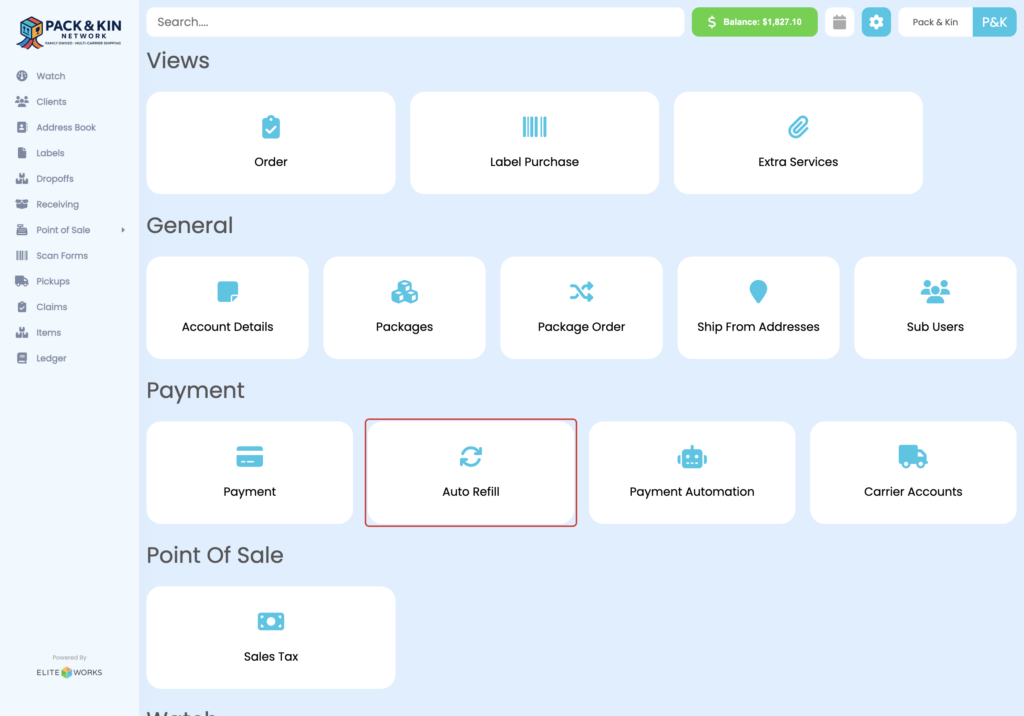
Pack and Kin Settings Menu Interface.
Pack and Kin Auto Refill Menu Interface.

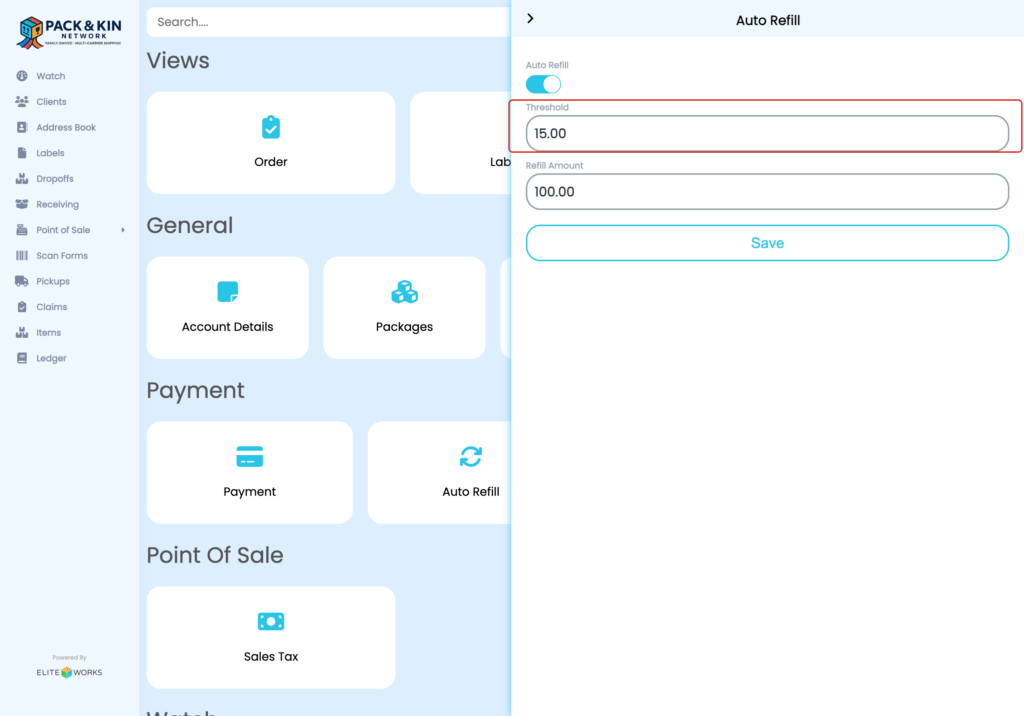
3. On the window that appears on the right-hand side, select your payment threshold for when money should automatically be refilled.

4. Enter the amount to be added to the account, then select Save.

This card will be set to the default payment method saved in your digital wallet.
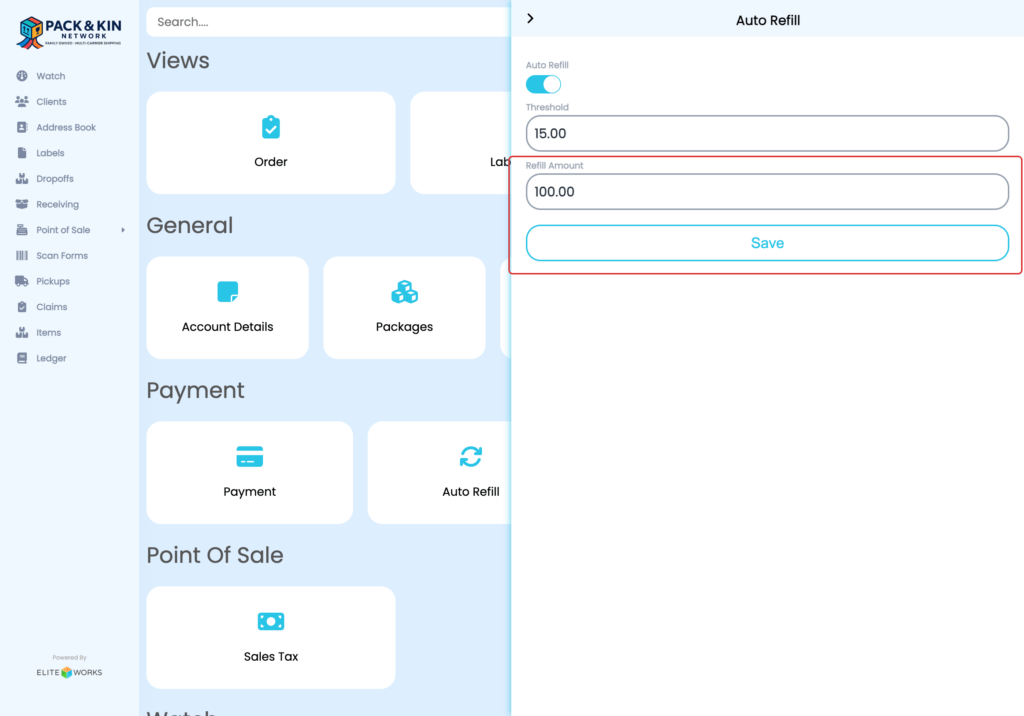
Pack and Kin Auto Refill Menu Interface.
    • Related Articles

    • Add A Payment Method

      Select the Settings Icon. 2. Select Payment. 3. Select the Blue Plus button to add a card. 4. Fill out the following fields for ACH Bank Accounts: A: Select the Method: Bank Account or Credit Card B: Select the Type: Checking, Savings, or Business ...
    • First Time Setup and Customizations

      When setting up the Pack and Kin software for the first time, it is recommended that users perform the following functions to ensure that their accounts can accurately accept payment for shipments, set competitive pricing, and have access to the ...
    • Add Funds to Digital Wallet

      Select the balance button at the top of the Pack & Kin window. 2. Enter an amount into the designated field, then select Add Payment. This will charge the default card stored in your digital wallet.
    • Process Point of Sale Transactions

      1. Click on Point of Sale 2. Click on Open 3. Search by item name, sku, or category. Or scan with your barcode scanner. 4. Click on your item 5. Adjust quantity if applicable 6. Click on Pay with Card or Cash 7. Click on Confirm, to confirm either ...
    • Add Default Ship From Address

      Select the Settings icon in the top right corner of the display. 2. On the window that appears, select the Ship From Addresses button. 3. Select the Plus button on the window that displays on the right side of the screen. 4. Fill out the following ...