Void A Shipping Label
Void A Shipping Label

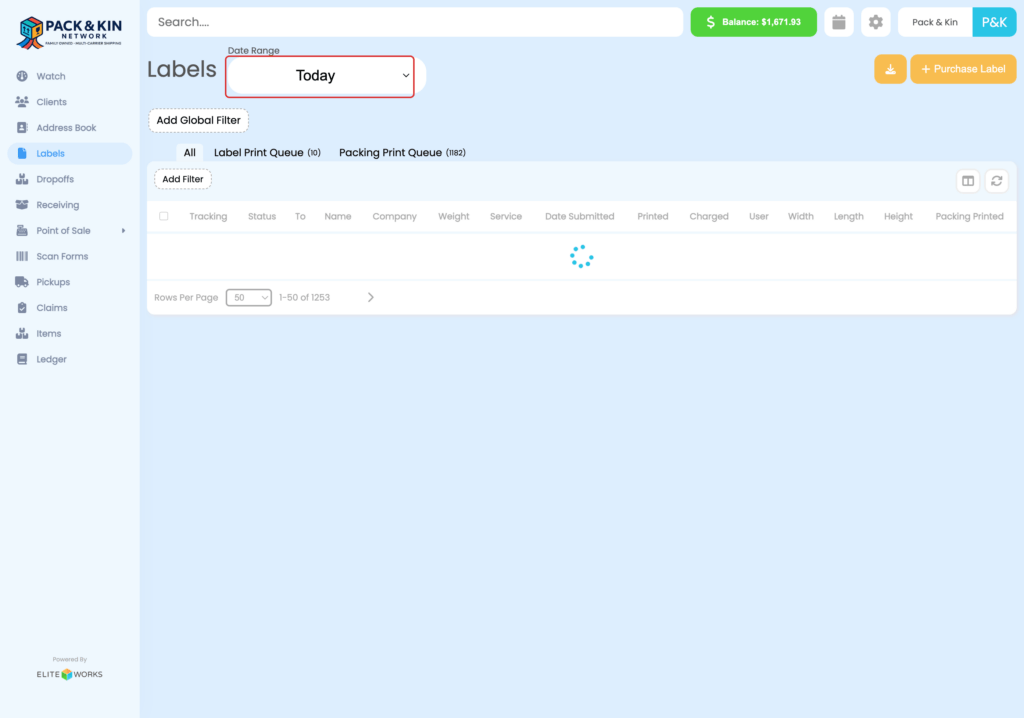
Pack and Kin Homescreen with Date Range filter selected.
  1. Set the Date Range filter for the time the package was shipped.

2. Select checkbox next to the label on the generated list.
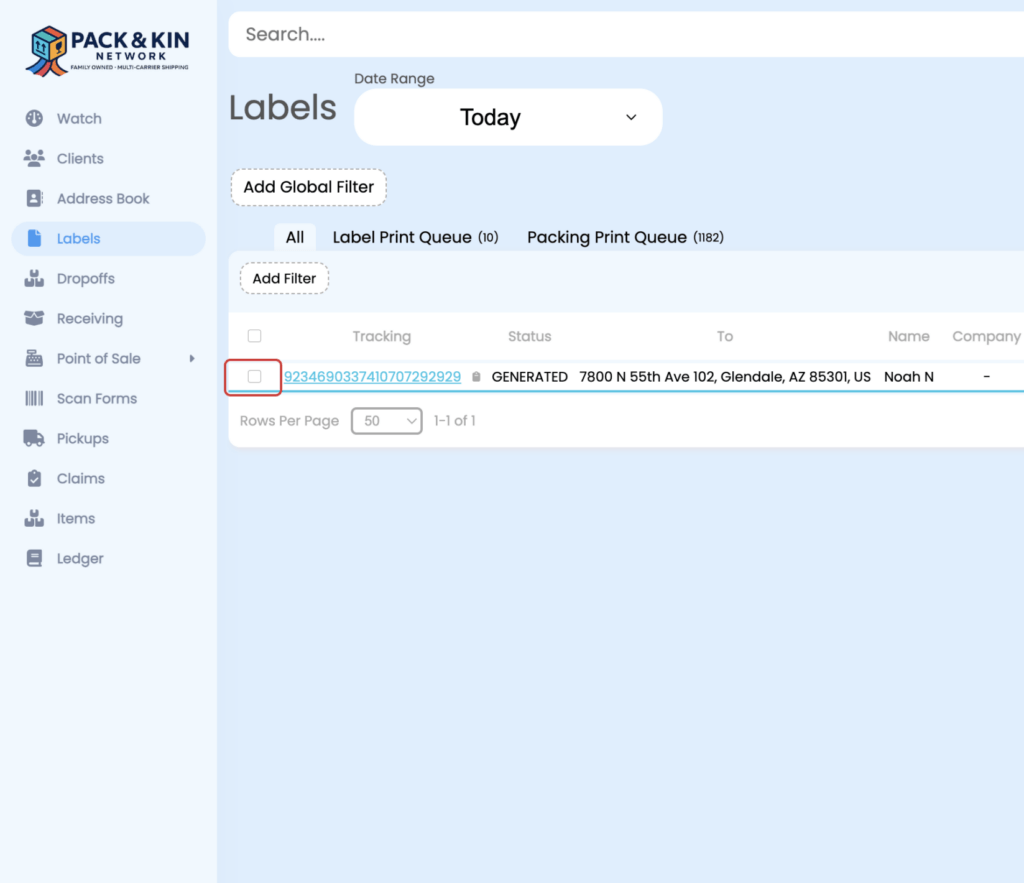
Pack & Kin Generated Label List for Today Screenshot
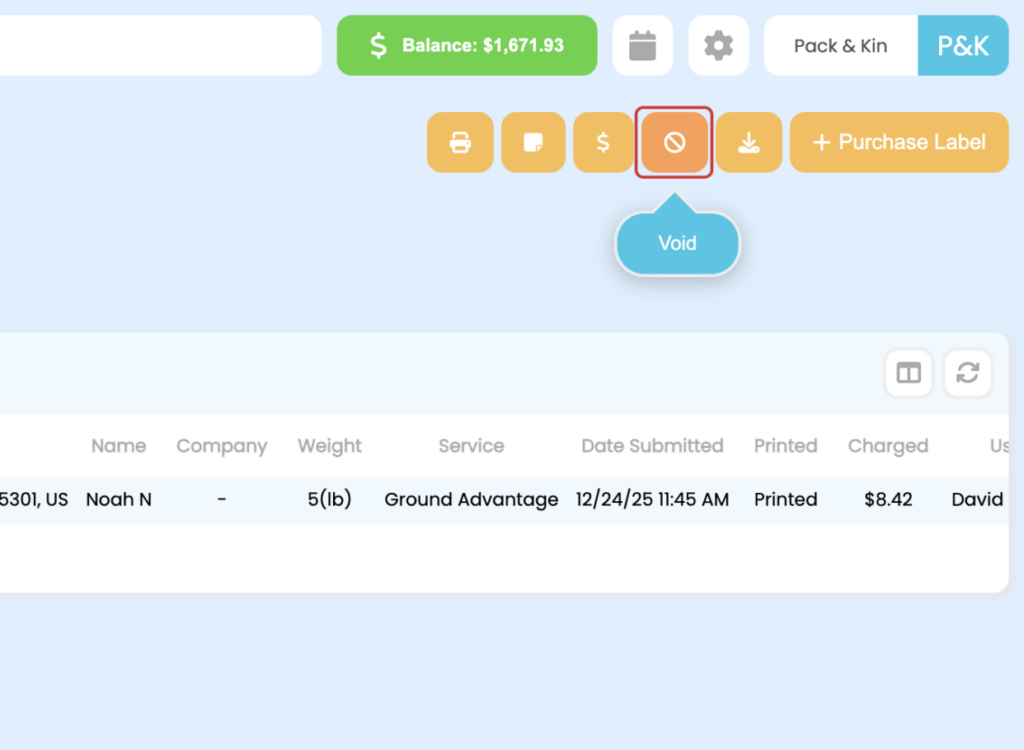
Void Shipment button highlighted and selected on Pack & Kin software.

3. Select the Void button in the top right corner of the screen to void the shipment.


      • Related Articles

      • First Time Setup and Customizations

        When setting up the Pack and Kin software for the first time, it is recommended that users perform the following functions to ensure that their accounts can accurately accept payment for shipments, set competitive pricing, and have access to the ...
      • Purchase A Label

        Select Custom Address from the From Address field. 2. Enter the information for the customer standing in front of you into the following fields: A. Name of the individual or Company sending the item B. Email or Phone of the customer for post shipment ...
      • Connect a Digital Parcel Scale

        From the Label menu, select Purchase Label. 2. In the window on the right-hand side, select the Connect Scale button.
      • Create Certified or Registered Class Letters

        Under the Labels menu, select Purchase Label. 2. Select a pre-saved client or enter the client information into the designated fields. When adding a new client, ensure the following fields are filled with the customer’s information for the person who ...
      • Configure Service Level Markups

        Margins can be easily configured based on business needs. The margins can be set by Global, Carrier, or Service. It is recommended that you select one of the modes below for your location. Important Notice We have grouped markups into Global, ...